

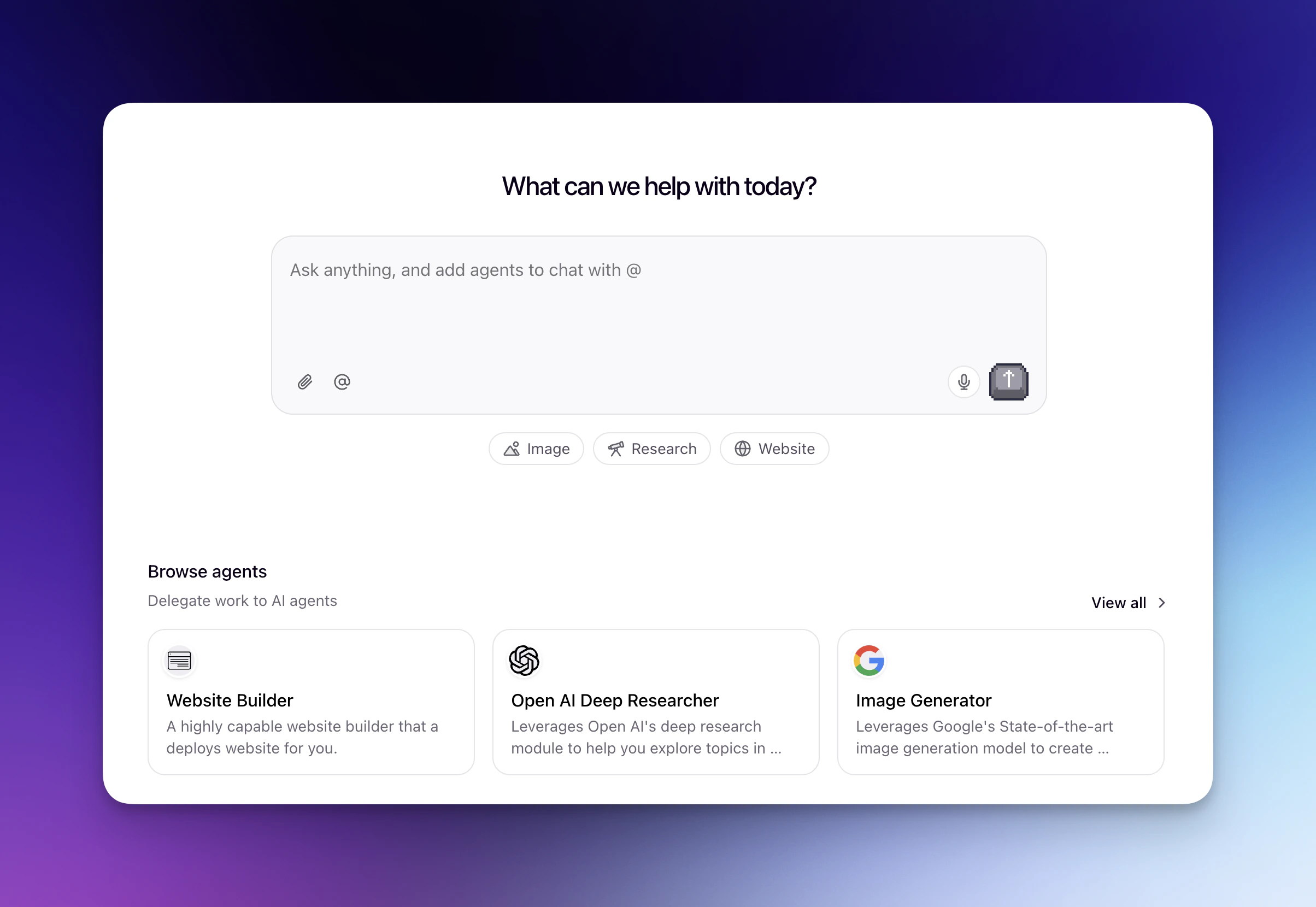
What you can do with Chat
Using Agents
Mention any Agent in your project to bring its capabilities into a conversation
Saved prompts
Reusable prompt templates shared across your team
Built-in Agents
Pre-built Agents for research, images, and slides
Getting started
Navigate to chat.relevanceai.com to start chatting. Chat works on desktop and mobile browsers, and is also available as a desktop app. Native Android and iOS apps are also available.Selecting an LLM
You can choose which LLM to use for your conversation, or select Auto to let Chat pick the best model for your request.Supported file types
Upload documents, images, and data files to give your conversations context, or generate new files from Agent responses. The following extensions are fully supported — other file types can still be uploaded but may not be processed reliably.Documents
pdf, doc, docx, ppt, pptx, xls, xlsx, csv, txt, md, xml, json, abw
Images
png, jpg, jpeg, webp, gif, svg, avif, bmp
Media
Audio: mp3, wav, ogg, m4a, aac, aiff, flacVideo: mp4, mpeg, mov, webm, avi, flv, mpg, wmv
Archives
zip, bin, arc
File capabilities by provider
Each provider supports different file types for reading (uploading files as context) and creating/exporting (generating new files from Chat responses).OpenAI
OpenAI
Size limits: 32 MiB per file, 50 MiB combined per messageDocument files:
.docx— read and create/export.docxwith images — create/export only.xlsx— read (converted to text) and create/export.csv— read and create/export.pdf— read and create/export.pdfwith images — read and create/export.txt— read and create/export.md— read only (create/export available on request)
.png— read and create/export.jpg/.jpeg— read and create/export (exported as PNG)
.pptxAnthropic
Anthropic
Size limits: 32 MiB per file, 32 MiB combined per messageDocument files:
.docx— read and create/export.docxwith images — create/export only.xlsx— read (converted to text) and create/export.csv— read and create/export.pdf— read and create/export.pdfwith images — read and create/export.txt— read and create/export.md— read (limited) only (create/export available on request)
.png— read and create/export.jpg/.jpeg— read and create/export (exported as PNG)
.pptxGemini
Gemini
Size limits: 32 MiB per file, 50 MiB combined per messageDocument files:
.docx— read and create/export.docxwith images — create/export only.xlsx— read (converted to text) and create/export.csv— read and create/export.pdf— read and create/export.pdfwith images — read and create/export.txt— read and create/export.md— read only (create/export available on request)
.png— read and create/export.jpg/.jpeg— read and create/export (exported as PNG)
- Video:
.mp4,.mpeg,.mov,.avi,.flv,.mpg,.webm,.wmv - Audio:
.wav,.mp3,.aiff,.aac,.ogg,.flac
.pptxVideo and audio files are only supported with Gemini. If you attach a video using an Anthropic or OpenAI model, the send button is blocked.Frequently asked questions (FAQs)
How does Chat usage affect my credits?
How does Chat usage affect my credits?
Chat credit usage will show up in the Plan & Billing credit monitoring section as ‘Chat Orchestrator’.You’ll be charged credits based on:
- The LLM model you’re using in Chat
- How much you use Chat (number of messages and interactions)
To monitor your Chat credit usage, navigate to Settings > Plan & Billing to see a detailed breakdown of your credit expenses. Learn more about Plans and credits.
Can I use different LLMs in Chat?
Can I use different LLMs in Chat?
Yes, you can select the LLM you want to use in Chat by following these steps:
- Click on the cog icon in the top right of your screen
- Choose the ‘Chat Model’ on the pop-up that appears
Can I use Relevance Chat on mobile?
Can I use Relevance Chat on mobile?
Yes. Relevance Chat is available as a native Android and iOS app, and you can also use it in any mobile browser at chat.relevanceai.com. The main Relevance AI platform (app.relevanceai.com) is not available on mobile — the mobile apps are Chat-only.
Can Chat remember my previous conversations?
Can Chat remember my previous conversations?
Yes! Chat Memory allows Relevance Chat to remember and reference your recent conversations. You can ask questions like “What did I ask about earlier?” or “Who did I compare X against recently?” and get contextual answers based on your chat history.Important limitations: Chat Memory only remembers history within the same project, and you can only access your own chat history, not other users’ conversations in the same project. This is different from Agent memory, which is conversation-specific memory within individual Agent interactions.
How do I switch between projects in Chat?
How do I switch between projects in Chat?
You can switch between projects using the project selector in the bottom left of the Chat interface. You can also use Cmd + K (Mac) or Ctrl + K (Windows) for quick access. When you switch projects, you’ll have access to all agents available in that project.For more details, see Learn how to switch projects in Chat.
What are Edge regions and how do I select them?
What are Edge regions and how do I select them?
Edge regions (US Edge, AU Edge, and EU Edge) are available in the Chat browser extension and desktop app. If your project is in an Edge region, it will appear in the project switcher labeled with (Edge) — for example, US (Edge).To select an Edge region project, open the project switcher and look for the (Edge) label next to the region name. For detailed instructions, see how to switch projects in Chat.Edge regions aren’t available in the Android and iOS apps.
What keyboard shortcuts are available in Chat?
What keyboard shortcuts are available in Chat?
Chat supports the following keyboard shortcuts:
| Action | Mac | Windows |
|---|---|---|
| Toggle left panel (chat history) | Cmd+\ | Ctrl+\ |
| Toggle right panel (Super GTM) | Cmd+B | Ctrl+B |
| Switch projects | Cmd+K | Ctrl+K |
Which Agents will show up in Chat - all the Agents in my organization, or just the ones in a specific project?
Which Agents will show up in Chat - all the Agents in my organization, or just the ones in a specific project?
You’ll be able to select the project you want to use Chat on in the bottom left. You’ll be able to use all of the Agents you have access to in this project. If you want to access Agents in another project, you’ll need to switch to that project in the bottom left.
Can I call multiple Workforces in the same Chat?
Can I call multiple Workforces in the same Chat?
Not at this time, but we hope to add this feature soon!
Can I call a Workforce and an Agent in the same Chat?
Can I call a Workforce and an Agent in the same Chat?
Not at this time, but we hope to add this feature soon!